Setup guide
Ready in about a minute.
Version 1.0.2, free APK, 2.9 MB. Android 12 or newer. Updated November 21, 2026.
- 1Install the APK
- 2Allow two permissions
- 3Turn on two switches
- 4Choose your apps
HyperKeep
Do you want to install this app?
HyperKeep
- 1
Download and install
Open this site on your phone and tap Download. Open the APK when it finishes. If your browser asks, allow it to install apps.
Xiaomi's installer may ask you to confirm a few times on China ROMs (for example Couldn't find ICP registration info and I understand this app wasn't security-checked). That's normal for apps installed from outside the Xiaomi store.
- 2
Allow the first two permissions
HyperOS first shows its own Review permissions list. Only the first two switches matter: turn on Access list of installed apps and Modify system settings, leave everything else off, and tap OK.
Missed one? HyperKeep shows Two permissions to start with an Allow button for each, and the screen clears by itself when you come back.
- 3
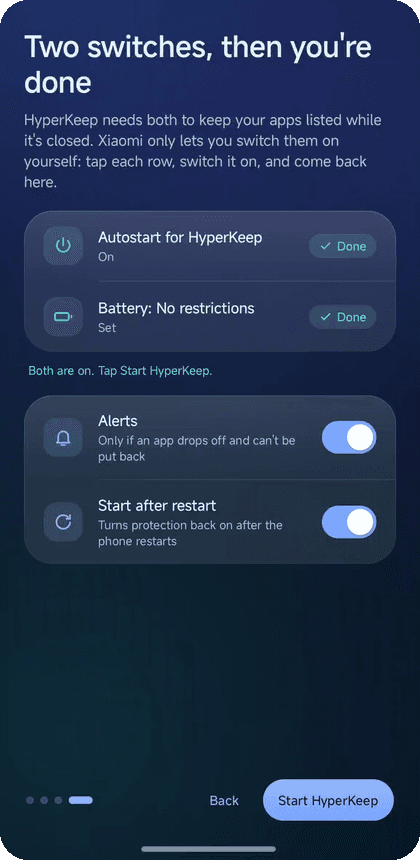
Turn on HyperKeep's two switches
Read the two short pages, then tap each row on Two switches, then you're done. Each opens the right Xiaomi page:
Autostart for HyperKeep: lets HyperKeep fix the list while it's closed. Battery: No restrictions: so HyperOS never freezes HyperKeep itself. HyperKeep is the only app that needs this; your other apps stay on Battery saver.
Each row turns to Done when you come back. Then tap Start HyperKeep.
- 4
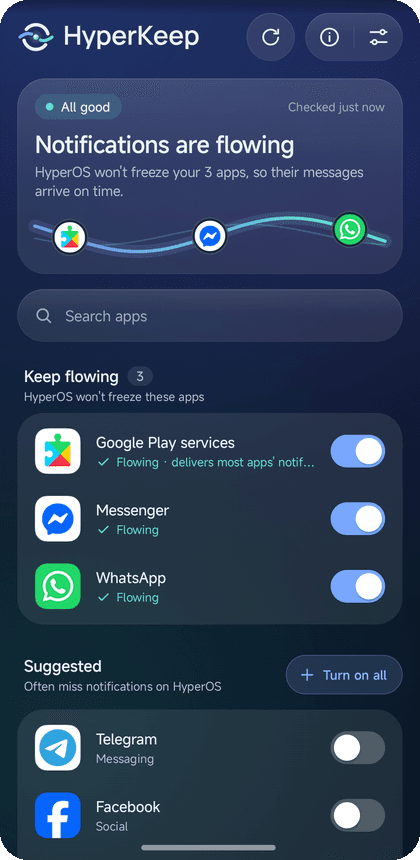
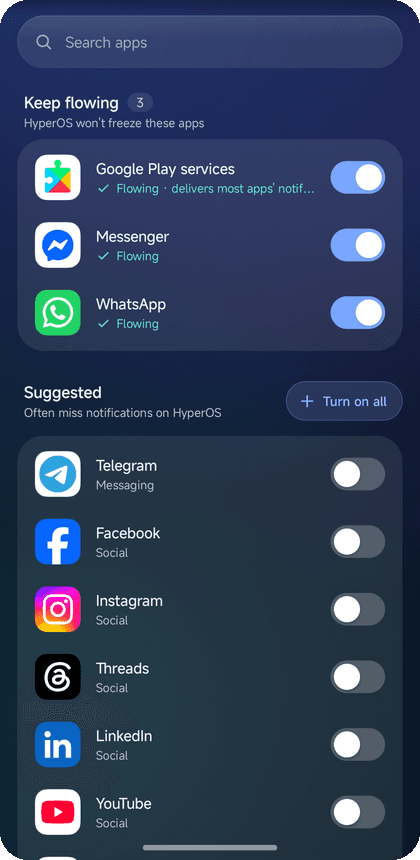
Choose your apps
Home opens with nothing turned on. Start with Google Play services (it delivers most apps' notifications and is suggested first), then WhatsApp, Messenger, your mail app and so on.
If an app needs a tap (Autostart off, set to No restrictions, or locked in Recents), HyperKeep shows exactly what to change and opens the page.
The same setup, in 68 seconds.
Updating and undoing
Updating HyperKeep
About once a day HyperKeep checks for a new version, even when it's closed (or tap ⟳ on Home). When one is out, you get a notification and Home shows Update available. Tap Update, read what's new, then Install update. HyperKeep checks the download before handing it to Android's installer. Your apps, settings and permissions stay.
If an update adds a permission, HyperOS shows Review permissions once more. Turn the first two on again and tap OK.
Undo everything
Settings → turn off Protect in the background. Then Settings → Advanced → Xiaomi's list → Backups → Original value → Restore. Now uninstall; HyperOS removes HyperKeep from its list by itself.

Get your notifications on time
Free for China ROM Xiaomi, Redmi and POCO. Set up in about a minute.
Version 1.0.2, free APK, 2.9 MB. Android 12 or newer. Updated November 21, 2026.
- Free, no root
- Nearly zero battery drain
- No ads or account